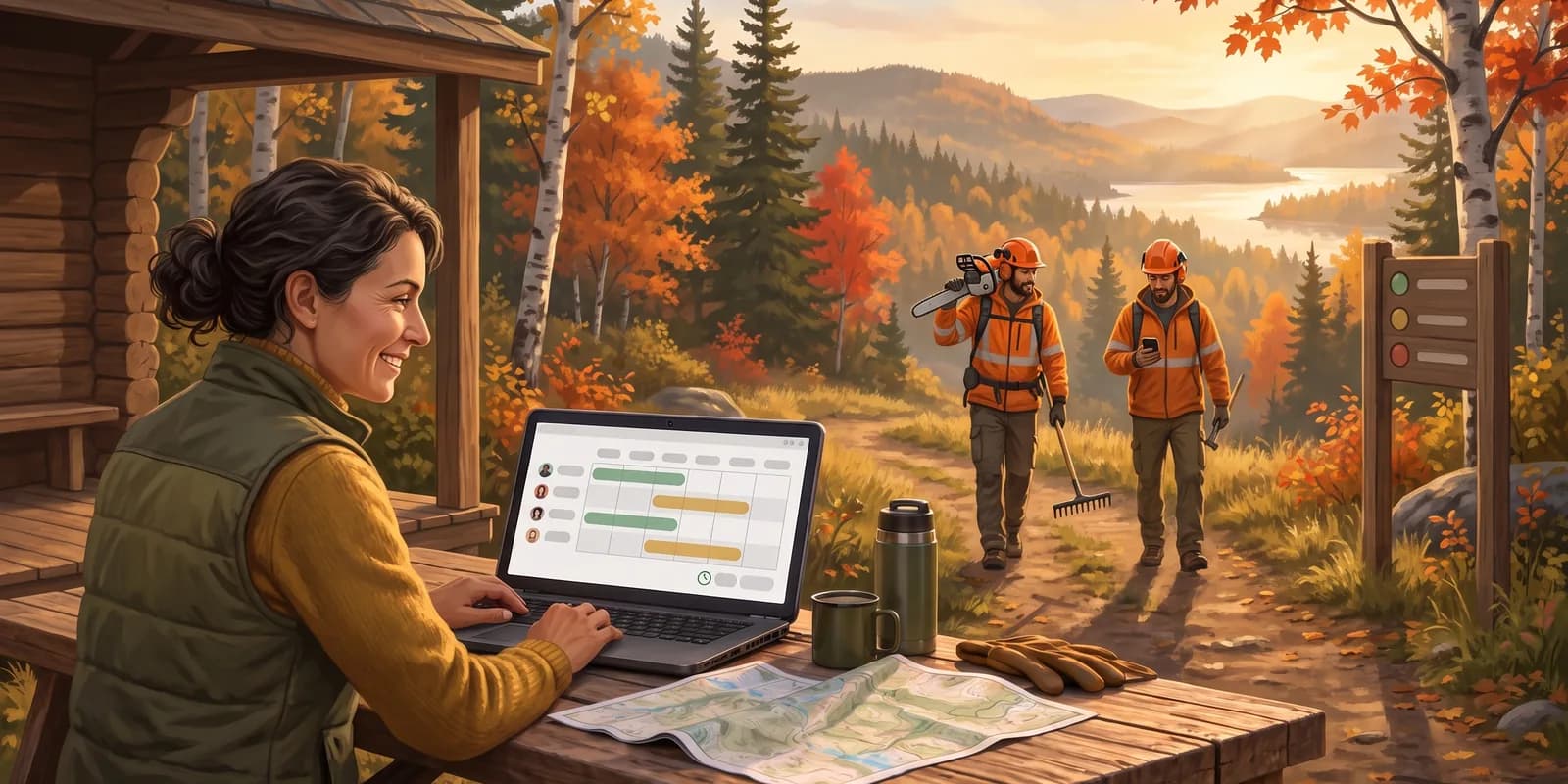
All of the team's hours in one place
Until now, time could only be read task by task. To know how many hours someone worked in a week, you had to open every task one after the other.
Sentinel 3.3.0 adds the Timesheets section, under Organization: the whole team over the period of your choice, grouped by person, role, project or task, with the cost for those allowed to see it.
From the total to the entry — Click a row to open the person's timesheet, week by week, or the detailed list of entries. You can change a date or delete several entries at once, and everything exports to Excel.
Closing a pay period — Choose your pay cycle, weekly or every two weeks. A closed period keeps its totals exactly as handed to payroll, and its entries can no longer be edited. An hour that arrives late from the field is flagged, not lost.
Your time, in your pocket
On mobile, My time replaces the old report in your profile. Your week reads day by day, and the Year tab shows your hours month by month: tap a month to open its weeks.
No more hunting for the task to log your day. The + button, or an empty day in the week, offers your assigned tasks and the ones you viewed recently, checklists included. From there you log the whole crew's hours in a single entry, even without a connection.
A member's sheet, without leaving the list
A member's sheet now opens in a panel on the right, and the list stays in view. Click another row to switch people without losing the open tab.
Activity you can read — Recent activity becomes a feed by day, in plain sentences: "Completed the checklist", with the item affected right below. A filter keeps only tasks, trails or time, and years of history load as you scroll, on the web and on mobile.
The person's week — The Timesheet tab shows their hours day by day. On the web, the panel widens to fit the whole grid.
Closing a trail in one click
The trail conditions section was rethought for speed. A board opens ready to be updated: one click on a trail's access, and it's published. An Undo message catches the accidental click, and a whole folder closes in a single move.
Three tabs for everything else — Conditions, Appearance and On your website. Installing on your site guides you according to your platform: WordPress, Wix, Squarespace, SharePoint, or an AI assistant that does it for you.
In the field — On mobile, a trail's whole row is tappable and opens a clear sheet with its name. Switching boards or activities no longer means going back.
Groomed, icy, muddy
"Open" tells you whether you can go, not what shape the trail is in. Trail states fill that gap: next to its access, each trail carries a state picked from your own list, per activity, with its icon, its colour and its name in French and English.
The widget shows it under the trail's name, in the visitor's language: "Muddy · 2 h ago". It also gains styles to choose from, including By level, which sorts trails by difficulty.
Work progress, in plain view
Riders want to know if their trail is ready, the municipality follows the work. A checklist can now be shared with a public link: ⋯ menu, then Share…. Anyone who opens it sees the progress and the trail map, read-only, without an account.
One link for the whole season — For a repeating checklist, the link follows the series and moves to the next occurrence on its own. Private trails, time, costs and members never show up.
What's urgent, at a glance on the map
On the map, a marker only told you the task's type: an emergency looked like a minor chore. A new option paints its disc in the priority's color — red for Critical, orange for High, blue for Medium. Low-priority tasks keep the usual marker, so only what matters stands out.
An option, not an obligation — On the Web, the new layers button next to Standard / Satellite opens Map parameters, which will host more display options. On mobile, the option joins the same sheet, below the map type.